Mouse — USB receiver does not match
Check receiver compatibility with the mouse.
Difficulty
Easy
Time
5–25 min
Cost
—
Symptoms
- mouse will not pair with a replacement receiver
Possible causes
1Incompatible radio receiver
Less likelyThis is a possible explanation, not a confirmed diagnosis. Compare it with the safe checks below.
- Switch off and compare mouse and receiver labels with documentation. Identical appearance does not establish compatibility.
Initial checks
- Switch off and compare mouse and receiver labels with documentation. Identical appearance does not establish compatibility.
- If compatible, use the official pairing process or maker's app. Avoid advertised driver-repair tools.
- Connect without a hub and check the pointer on a normal mouse pad. Keep the old receiver for comparison.
Step-by-step repair instructions
- 1
Prepare a safe place
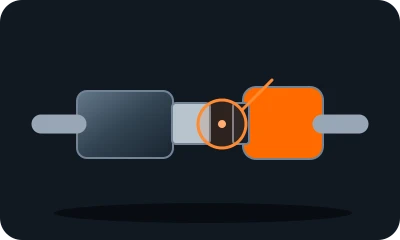
Reference diagram. The marker shows an example inspection area. Follow your model's manual. 
Conceptual illustration. Follow the text and your model's manual. Find the manual and model identifier. Photograph the initial condition. Start with reversible checks that do not open the casing or require force.
Expected result: You understand the model instructions and can safely perform the listed tasks.
About 3 min
Stop if: The model, access or safe preparation is unclear.
- 2
Read model numbers
Reference diagram. The marker shows an example inspection area. Follow your model's manual. Conceptual illustration. Follow the text and your model's manual. Switch off and compare mouse and receiver labels with documentation. Identical appearance does not establish compatibility.
Expected result: You have both model numbers.
About 4 min
Stop if: Labels are unreadable or equipment damaged.
- 3
Use official pairing
Reference diagram. The marker shows an example inspection area. Follow your model's manual. 
Conceptual illustration. Follow the text and your model's manual. If compatible, use the official pairing process or maker's app. Avoid advertised driver-repair tools.
Expected result: The process detects compatible equipment.
About 4 min
Stop if: Documentation does not confirm compatibility.
- 4
Check one port
Reference diagram. The marker shows an example inspection area. Follow your model's manual. Conceptual illustration. Follow the text and your model's manual. Connect without a hub and check the pointer on a normal mouse pad. Keep the old receiver for comparison.
Expected result: The pointer responds to movement.
About 4 min
Stop if: The computer reports a USB fault.
- 5
Check the outcome and save your notes
Reference diagram. The marker shows an example inspection area. Follow your model's manual. 
Conceptual illustration. Follow the text and your model's manual. Restore parts to their normal position as instructed. Perform one brief, safe check. Note what changed after each task; if the fault remains, give a technician the model and a photo of the symptom.
Expected result: The symptom has stopped or you have clear notes for a technician.
About 3 min
Stop if: Replace an incompatible receiver with a manufacturer-matched part. Do not modify electronics.
When should you call a professional?
Replace an incompatible receiver with a manufacturer-matched part. Do not modify electronics.
Does your situation look different?
Take a photo — FIXIT will assess your fault and suggest checks for your situation.
Check your problemThis guide is for information only. If unsure, get professional help. In an emergency, call 112.